Adding & importing marks
A "mark" is a name you want to watch. Add one and Thorgate screens it against the full register immediately, then against every new filing each night.
Add a single mark
From Marks → Add a mark, enter the wording and pick the Nice classes it covers. That's all that's required.
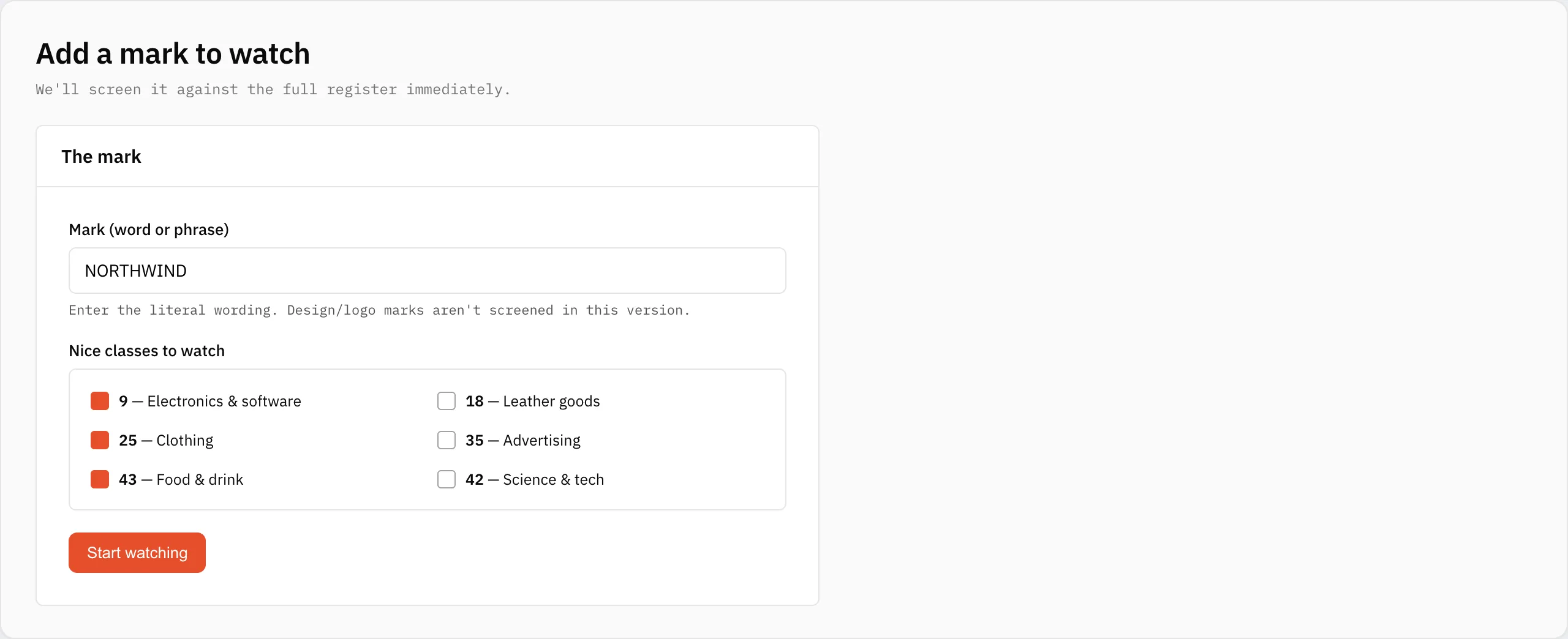
- Mark — the literal word or phrase. Design/logo marks aren't screened in this version.
- Nice classes — the goods/services classes your mark covers. Conflicts in the same or related classes score higher. Not sure which? Use the class suggester.
- Alert threshold (advanced) — the score below which findings are hidden. The default of 65 suits most marks.
- Filing details (advanced) — if the mark is already filed, add the serial number and stage so Thorgate can docket its deadlines.
Import many at once
Have a portfolio? Marks → Import CSV takes a spreadsheet. Download the template, fill a row per mark, and upload.
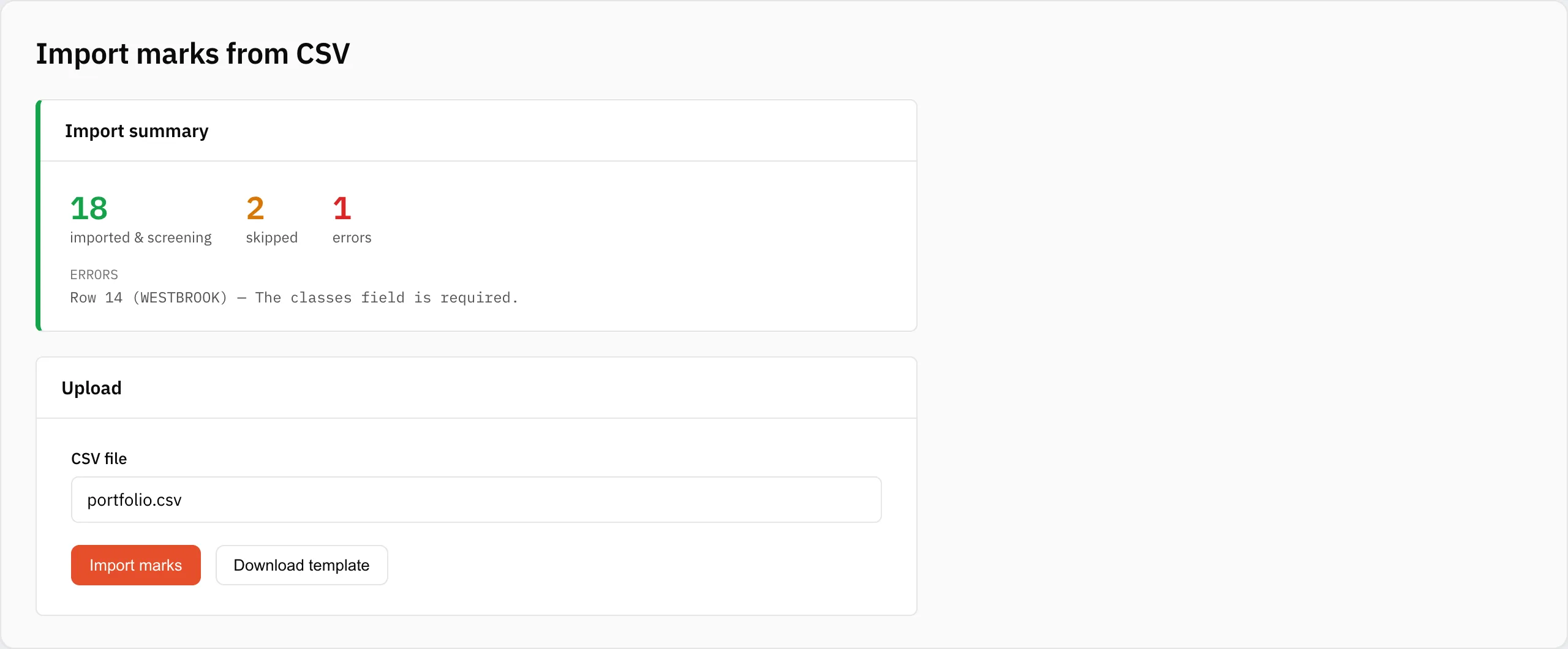
The columns are mark_text, classes (e.g. 9|42), and optional threshold, filed, serial_number, and stage. Up to 500 rows per file. Invalid rows are reported individually — the rest still import.
After you add
New marks show a "screening…" state in your marks list for up to a minute while the first sweep runs, then fill in with findings.
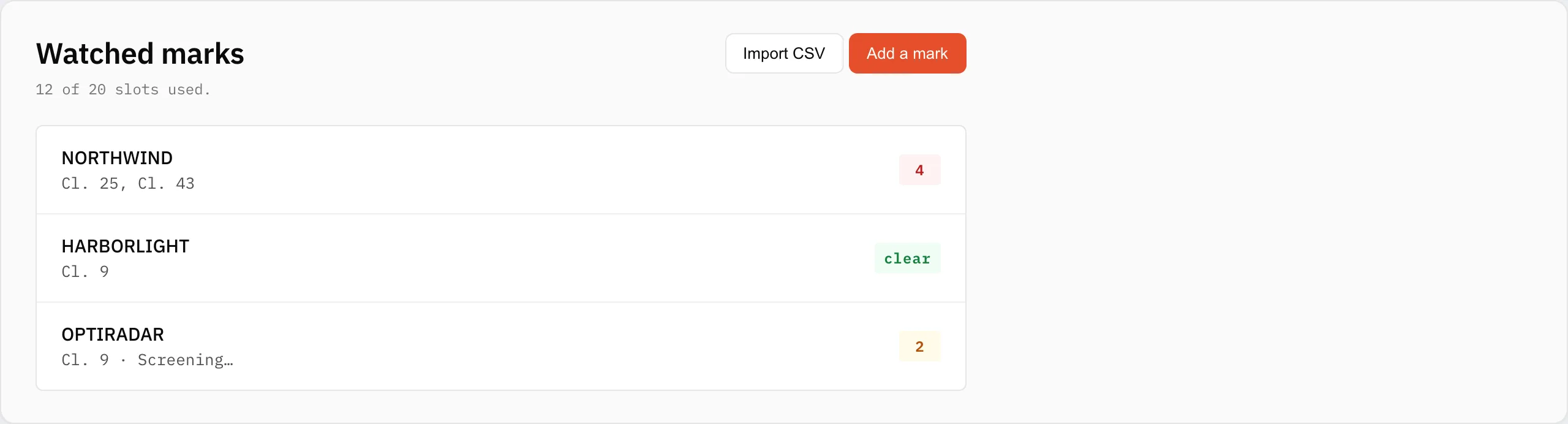
Plan limits: each plan watches a set number of marks. If an import exceeds your remaining slots, the extra rows are skipped and reported — no partial charges, nothing silently dropped.